FuseDesk Blog

Home/FuseDesk Blog/

Custom SMTP Server for Sending Emails from FuseDesk

If you'd like to use your own SMTP server to send your outbound help desk emails from FuseDesk you can easily set that up. This allows you to send mail through your own servers, or through most third party providers like SendGrid, SparkPost, MailGun, etc. Note that sending email via SMTP requires a FuseDesk Enterprise Keep Reading...


Amazon SES for Sending Emails from FuseDesk

If you'd like to use Amazon SES to send your outbound help desk emails from FuseDesk you can easily set that up. Note that sending email via Amazon SES requires a FuseDesk Enterprise Plan. Head to Settings and then Outbound Emailing. Select Amazon SES from the list and enter your credentials. You'll need your Amazon Keep Reading...

Adding FuseDesk Live Chat to a Kajabi Website

Delight your customers. Convert more prospects. Add FuseDesk's Live Chat to your Kajabi Website in one of two ways. Configuring Your Live Chat The first step is getting your Live Chat setup. Login to your FuseDesk App and click Chat Settings under SettingsClick the green Live Chat + buttonConfigure your chat widget and settings Adding Keep Reading...

Using Workflows in FuseDesk

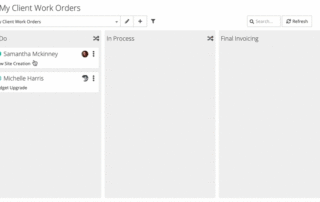
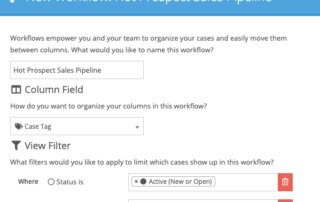
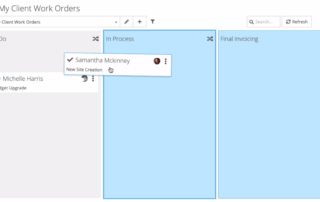
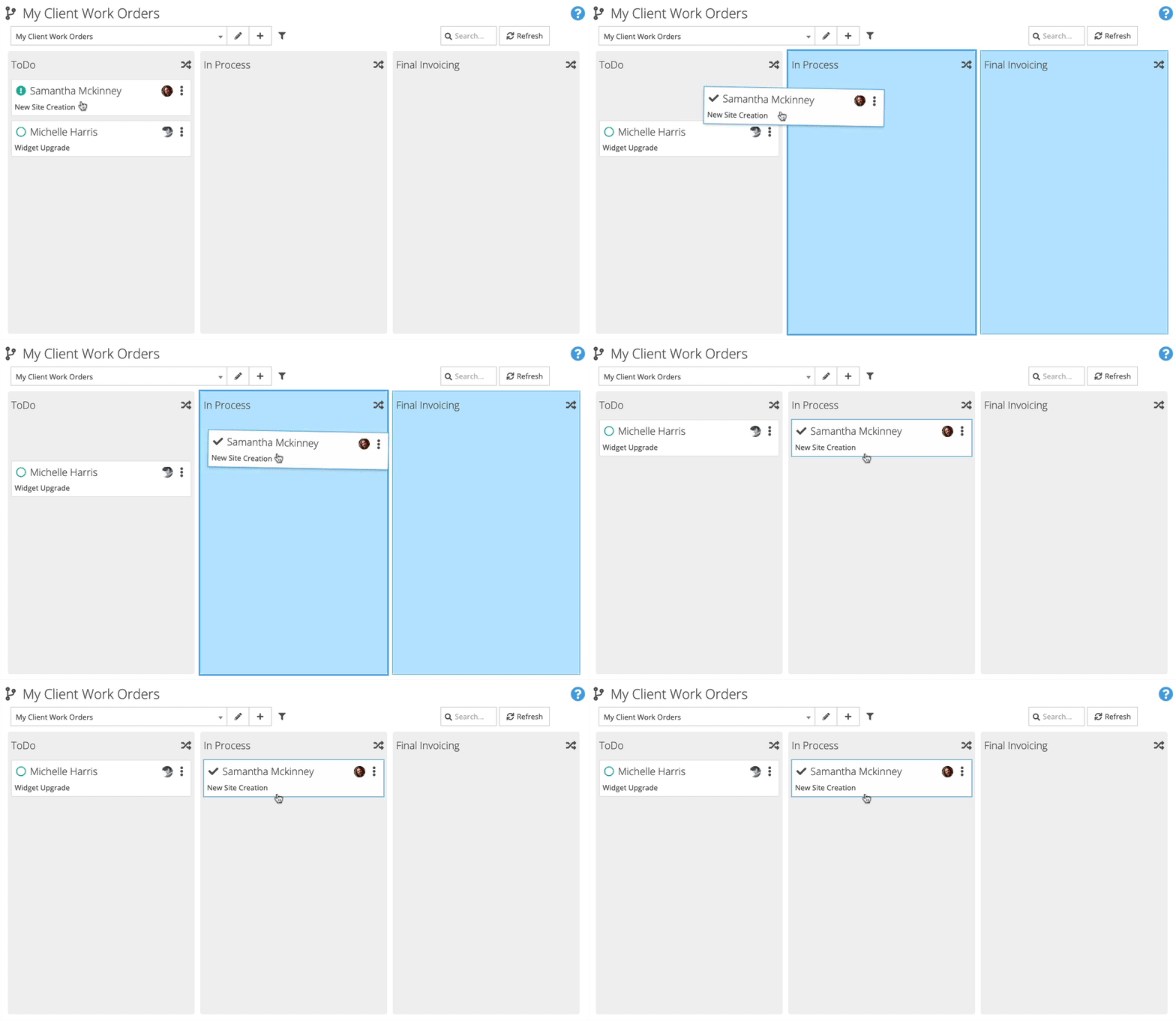
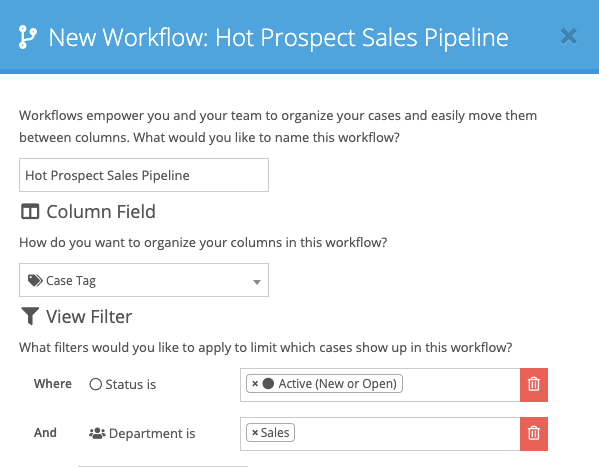
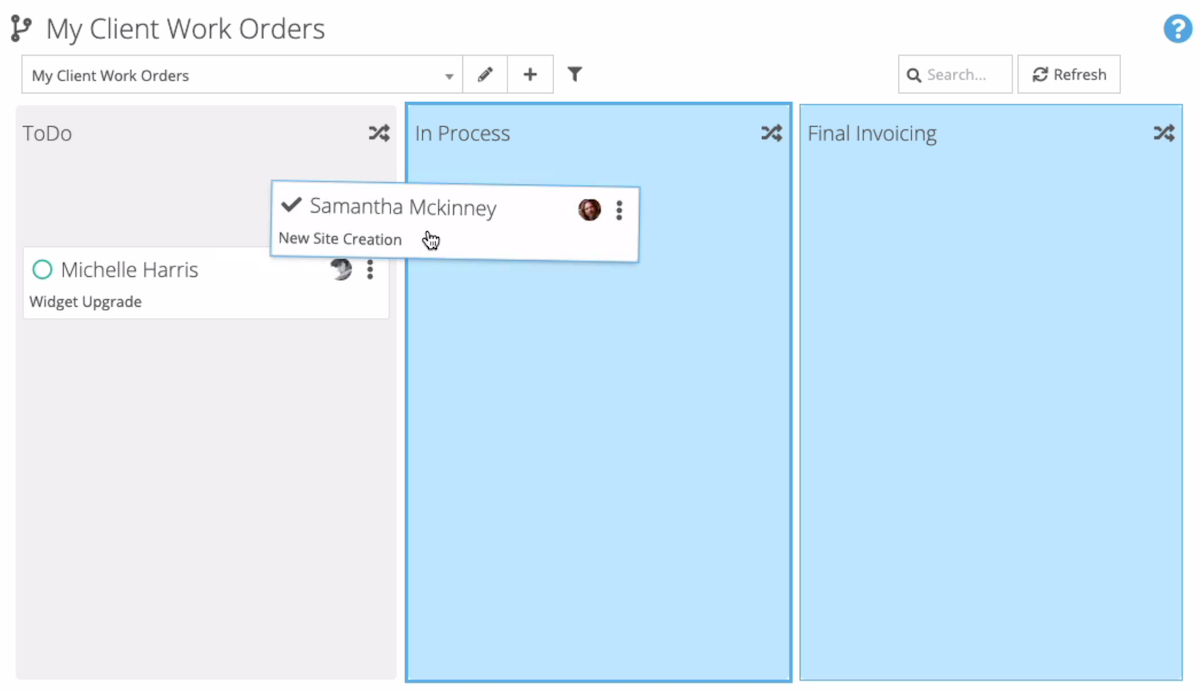
FuseDesk Workflows empower your team to easily move cases through your business processes and leverage Automations in FuseDesk. FuseDesk Workflows help you with Kanban Boards, Sales Pipelines, Client Projects, ToDo Lists, and more. Service based business moving Work Orders through a pipeline love FuseDesk Workflows. Sales organization moving prospects through a Sales Pipeline love FuseDesk Keep Reading...

Configuring Automations for FuseDesk Workflows

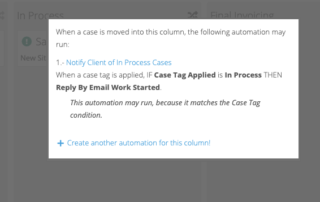
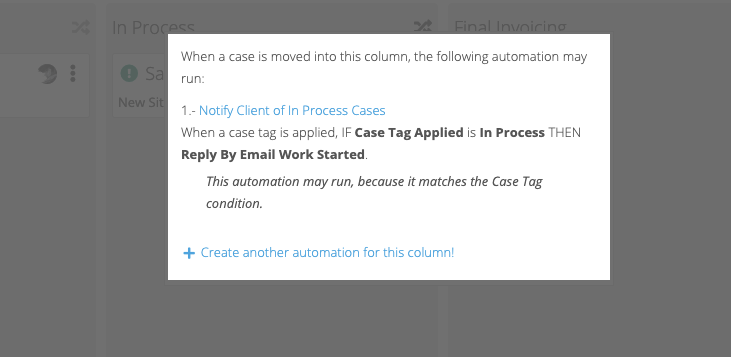
As you move cases between columns in FuseDesk Workflows, you can configure Automations to run. At the top right of each column you may find an Automation icon. Hover over the Automation icon to see what Automations may already run for cases as they enter the column. You can also typically choose to create a Keep Reading...

Renaming a Department

To change the name of a department in FuseDesk, head to Departments under Settings and click the name of the department you want to rename. At the bottom of the department editor is a Rename Department button. Click Rename Department and enter a new department name to change the name of your department. Renaming vs. Keep Reading...