
 Ready for a cooler, faster, more powerful quick case search than ever before? Would you love to find an Infusionsoft contact and their cases by phone number when they call in? What about by name, company name, email address or case number?
Great! You’re going to LOVE this morning’s freshly released quick case search in FuseDesk!
To search for a case in FuseDesk, use the newly improved quick search box on the left of the sidebar.
Enter a complete case number to be brought directly to the case you’re looking for.
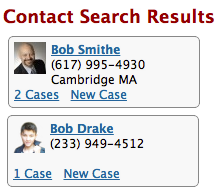
Entering any of the Infusionsoft Quick Search box searches will return a list of matching contacts, sorted by how recently their last case was updated.
Each contact box shows their photo, name, phone number and location, along with a link to view all of their cases, and a link to add a new case.
Clicking the New Case link will open the new case creator with the contact’s name pre-filled in for you.
This is super handy if your phone rings and you want to look up a contact based on the phone number. Simply enter their phone number in the search box and a list of matching contacts with that phone number will come up.
Looking for a customer by name? Just type in their name, or part of their name, to find them. For example, try Bob Smith, B Smith, Bob S, *ob Smith and more!
You can also search by email address or partial email address, i.e. *@somewhere.com or bob*@some*.com
You can even search by company name with * * Acme Networks, * * *Networks, or * * Ac*Net. (The first two asterisks, if you’re curious, are for “any first name” and “any last name”)
Give it a try and prepare to be amazed at how easy it is to find contacts and their cases!