GoHighLevel users can easily connect FuseDesk to leverage our powerful deep CRM integrations.
Connecting GoHighLevel during Setup
If you’re setting up your FuseDesk app for the first time, simply click “Connect to a CRM” from the welcome screen under App Setup.
Connecting GoHighLevel after Onboarding
If you have already completed your FuseDesk onboarding and you want to connect FuseDesk up to GoHighLevel, head to App Options under Settings.
Scroll down to CRM and click to Connect to your CRM.
If you’re already connected to another CRM, you’ll need to Disconnect from your CRM first.
Configuring GoHighLevel
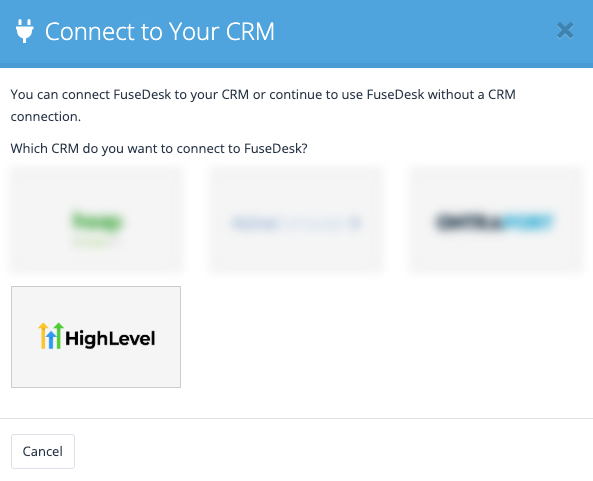
From the CRM Connect popup, click on the GoHighLevel logo and you’ll be routed through GoHighLevel.

If you’re not already logged into GoHighLevel, login
Then select the GoHighLevel Sub-Account you want to log into from the list.

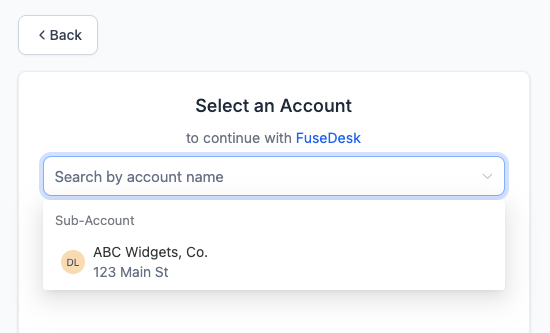
Note that FuseDesk works with your Locations / Sub-Accounts and not your Agency account.
Important Note for GoHighLevel Agency Admins
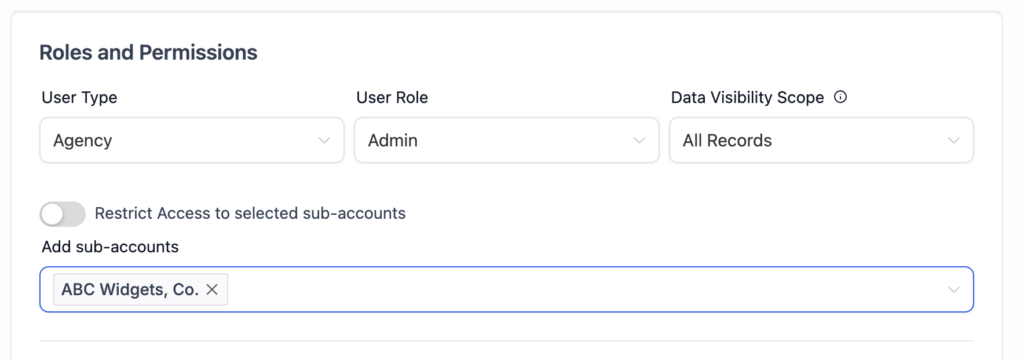
If you are a GoHighLevel Agency Admin, you’ll want to make sure that you’re explicitly assigned to the location you want to log into.
To do this, from your Agency account, click on Settings and then Team.
Click on your user account and then under Roles & Permissions, explicitly add the Sub-Account you want to connect to under Add Sub-Accounts and click Save.

GoHighLevel in FuseDesk
With your FuseDesk app connected up to GoHighLevel, you’ll be able to:
- Automagically link up emails, cases, chats, and more to your GoHighLevel contacts
- Leverage all of your GoHighLevel merge fields and custom fields in your FuseDesk email and note templates
- Add Contacts directly to GoHighLevel Automations right from FuseDesk cases and automatically with FuseDesk Automations
- Apply GoHighLevel Tags to Contacts right from FuseDesk cases and automatically with FuseDesk Automations
- Save all of your case history (notes, emails, chats) to the GoHighLevel contact’s activity
- Easily invite your existing GoHighLevel Users to log into FuseDesk as a rep
- Log directly into FuseDesk through GoHighLevel without an additional username or password
- Link FuseDesk case history to the right GoHighLevel User in GoHighLevel
- Collaboratively support prospects and customers in one place as a team
Try FuseDesk for Free
Ready to Get Started with FuseDesk for GoHighLevel? Get yourself a free FuseDesk app today and connect to GoHighLevel!